¶ SDK 1. 登入介面 UI 邏輯
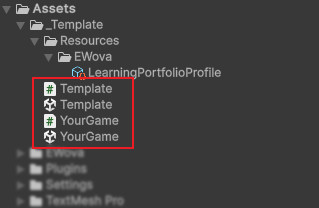
這邊會針對 C# 操作邏輯撰寫
請參考 Template.cs
// 因為登入平台後會自動記錄使用者登入帳號
// 你可以透過該方法清除登入過的帳號紀錄
loginPlane.ClearAllSavedData();

// 你可以透過不透過 UI 介面而是用程式碼來登入
loginPlane.Login("帳號", "密碼");

// 監聽開始遊戲邏輯觸發 (當按下開始遊戲按鈕、跳過登入按鈕)
loginPlane.OnGameStart.AddListener(OnStart);

private void OnStart(bool isLogin)
{
    if (isLogin)
        Debug.Log($"登入開始 使用者身分:{LearningPortfolio.LoginUserData}");
    else
        Debug.Log("跳過登入");

    // 這裡可以載入你的遊戲場景
    // 目前已 YourGame 為例子,請到 YourGame.cs 中參考後續處理
    UnityEngine.SceneManagement.SceneManager.LoadScene("YourGame");
}

// 登入後,可以從這邊取得使用者資料
LearningPortfolio.UserData loginUserData = LearningPortfolio.LoginUserData;
string 名字 = loginUserData.Name;
string 暱稱 = loginUserData.Nickname;
string 所屬組織 = loginUserData.OrgName;

// 提供了一些事件
LearningPortfolio.OnUserLogin += (userData) =>
{
    Debug.Log($"使用者登入 {userData}");
};
LearningPortfolio.OnUserLogout += () =>
{
    Debug.Log("使用者登出");
};
LearningPortfolio.OnUserProjectRecordUpdated += (sheet) =>
{
    // 請注意,若你有登入登出更改使用者,這個是檢表單可能是為不同使用者表單
    // 可以透過 sheet.Owner 來確認是誰的資料
    Debug.Log($"使用者資料更新 {sheet}, 使用者: {sheet.Owner}");
};
¶ SDK 2. 讀寫使用者資料操作
請參考 YourGame.cs
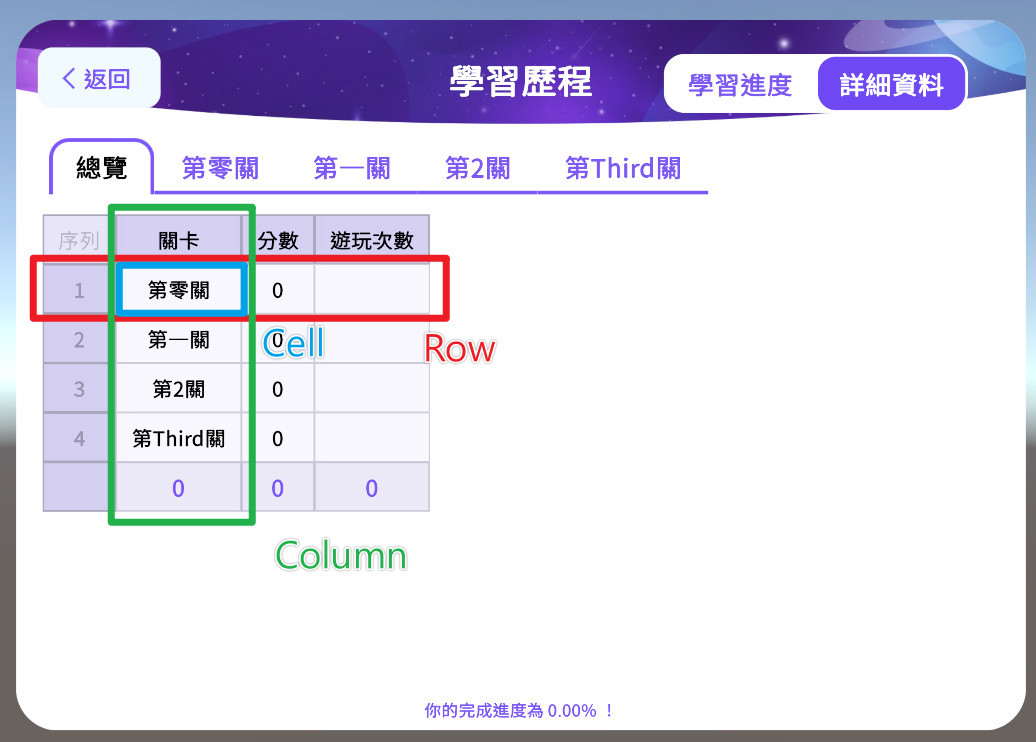
¶ 表單結構
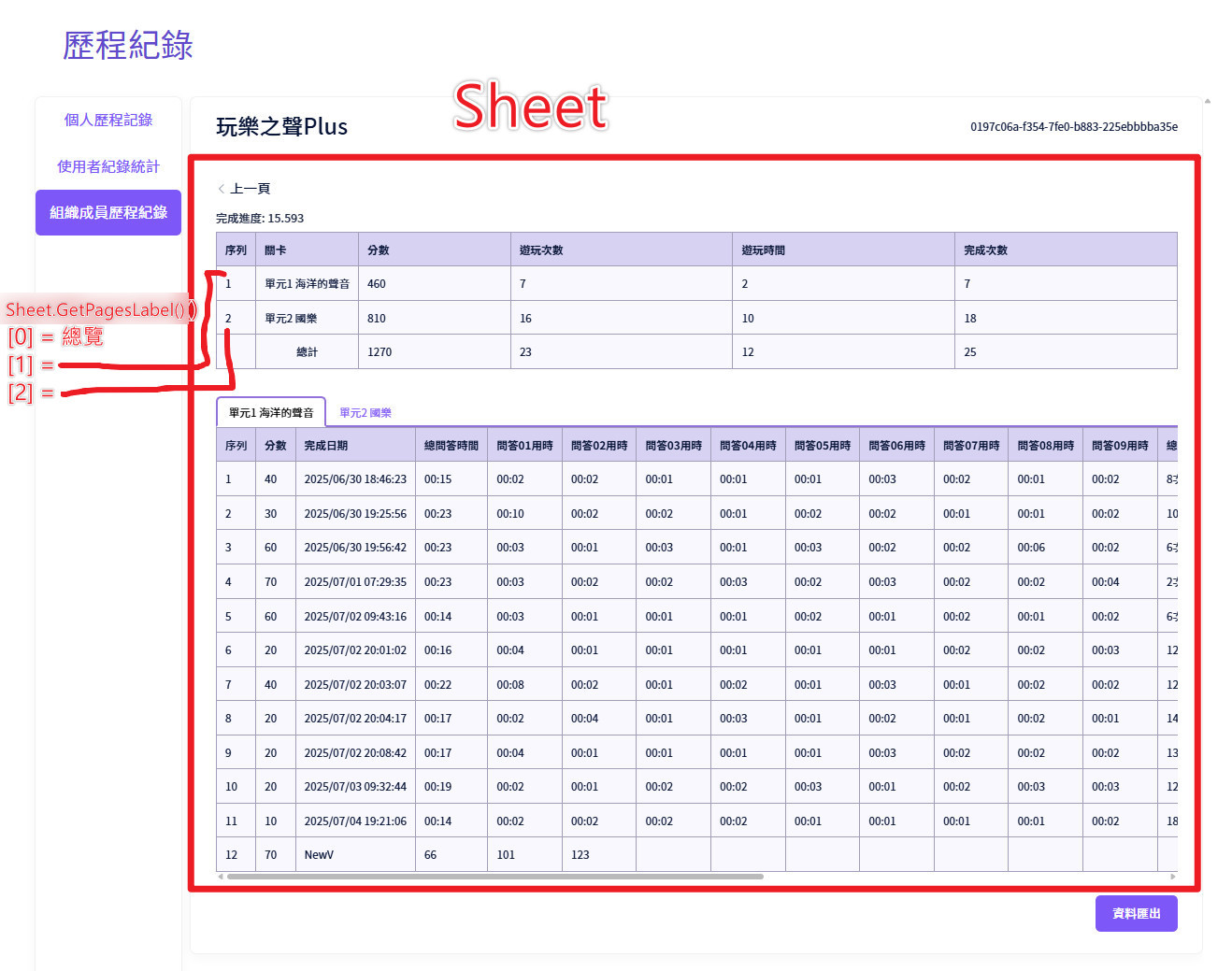
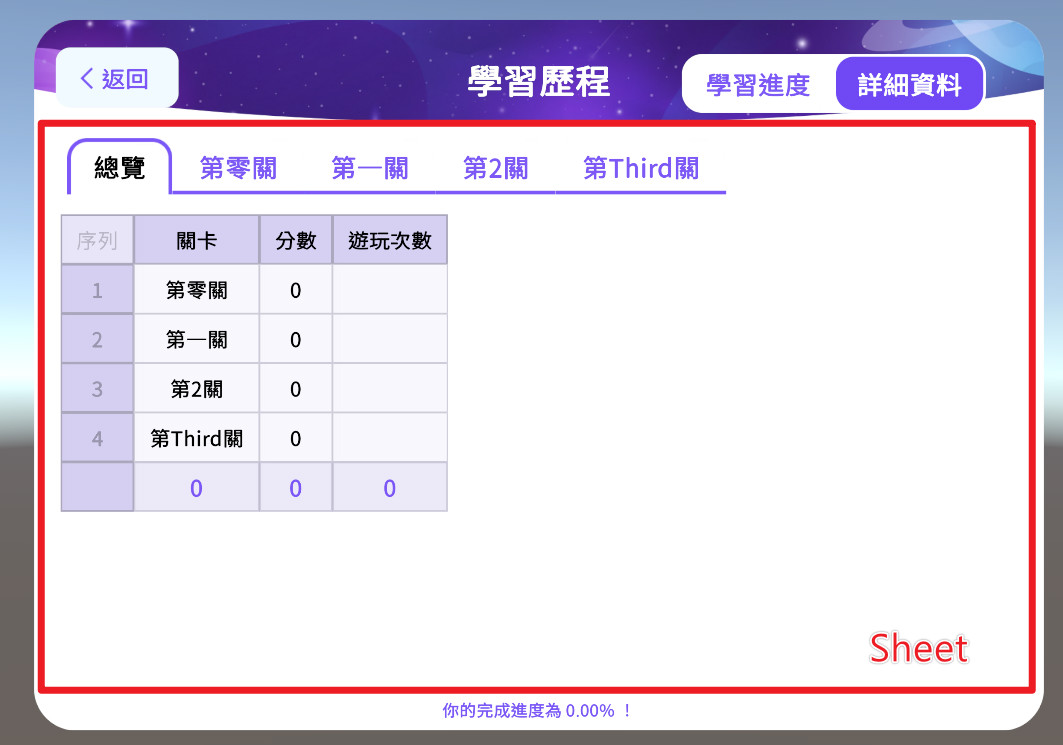
Sheet
├─ CompletionProgress
└─ Page
└─ Row x Column
└─ Cell
Sheet (class UserProjectRecordSheet)
  |
  ├── Owner                            : 擁有者
  ├── ProjectId                        : 使用者專案記錄表單ID
  ├── SheetId                          : 表單的唯一識別ID
  ├── UserId                           : 擁有者識別ID
  ├── Name                             : 使用者專案記錄表單名稱
  ├── LastUpdatedLocal                 : 表單的最後更新時間 (本地時間)
  ├── IsAnyNetSerivceRequesting        : 是否有任何網路服務正在請求寫入資料
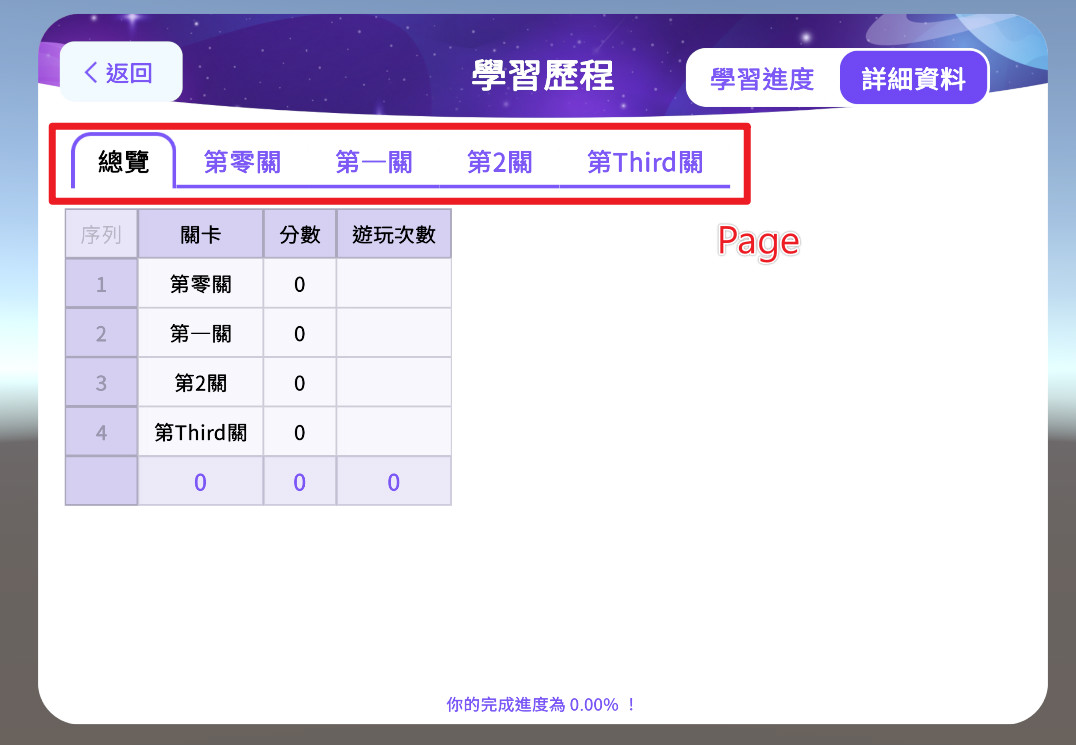
  ├── [Pages]                          : 表單分頁 (第0頁即總覽)
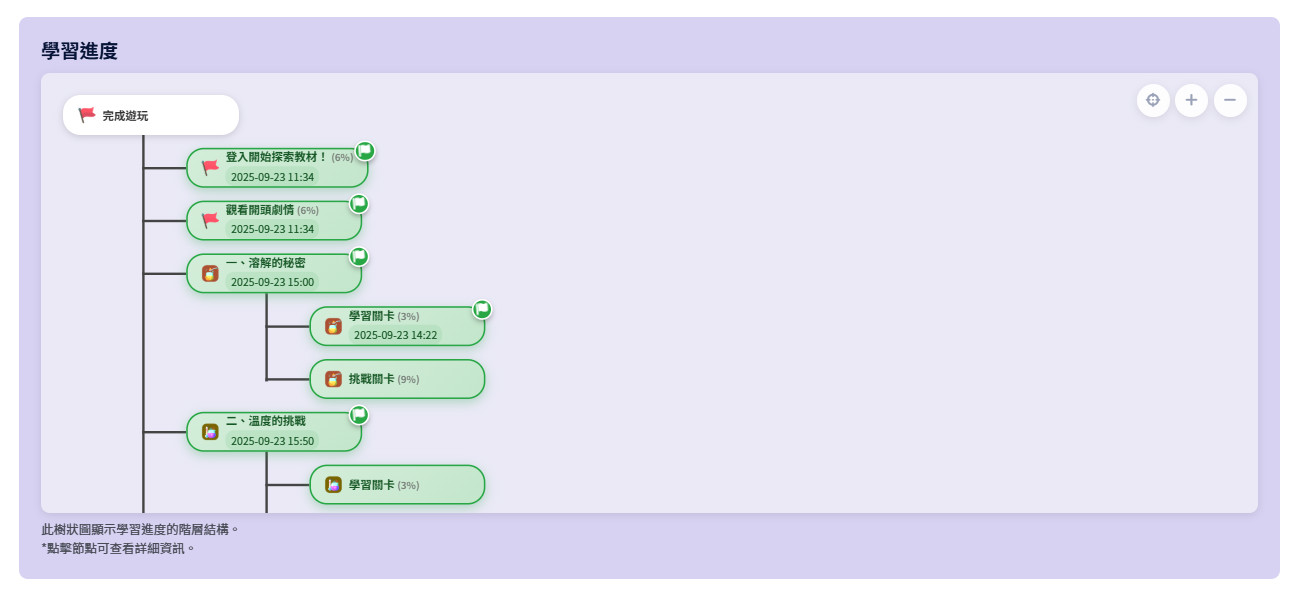
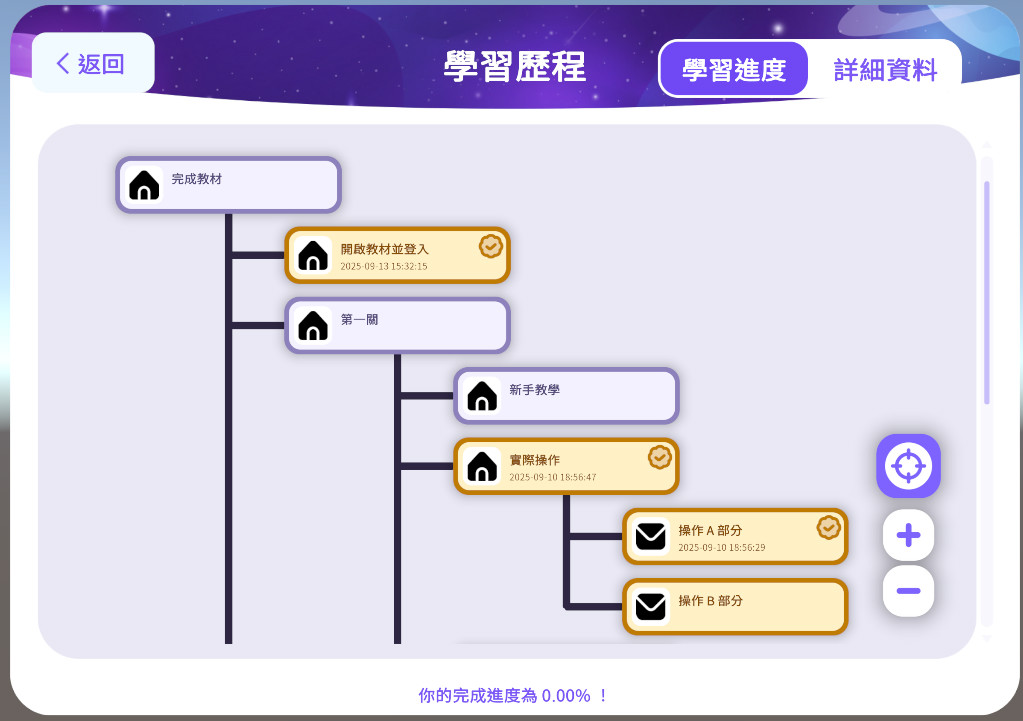
  ├── CompletionProgress               : 使用者該紀錄完成度,透過進度節點的分數權重計算出的 (0.0 ~ 1.0)
  ├── [ProgressNode]                   : 進度節點樹狀結構 (可能為 null,表示無進度節點)
  ├── ProgressCompletions              : 已完成的進度節點路徑清單 (格式為 "根節點/子節點1/子節點2/..." )
  ├── ProgressCompletionsLocalDateTime : 已完成的進度節點路徑日期清單
  ├── * SetCompleteIncludeNonNode      : [網路服務請求] 標記某路徑為已完成 (節點可能不存在,但允許標記完成。可能用於隱藏進度紀錄)
  └── * SetUnmarkIncludeNonNode        : [網路服務請求] 取消某路徑已完成標記 (節點可能不存在,但允許取消標記。可能用於隱藏進度紀錄)

    [ProgressNode]
      |
      ├── [RootSheet]
      ├── Parent                       : 父節點 (null表示為根節點)
      ├── Children                     : 子節點
      ├── Id                           : 節點識別ID
      ├── Label                        : 節點標籤名稱
      ├── Description                  : 節點說明文字
      ├── IconTex                      : 節點圖示 (可能為 null)
      ├── ScoreWeight                  : 進度權重 (用於計算完成度)
      ├── CalculatedProgressScore      : 透過節點 ScoreWeight 計算出的完成度分數 (用於計算完成度,範圍為 0.0 ~ 1.0)
      ├── IsHidden                     : 節點是否可見
      ├── Path                         : 節點路徑 (用於標記完成度,格式為 "根節點/子節點1/子節點2/..." )
      ├── IsCompleted                  : 是否已完成 (自己、子節點或父節點其中之一已完成即為完成)
      ├── IsCompletedSelf              : 是否自己被標記為已完成
      ├── CompleteTime                 : 自己被標記為已完成的時間 (本地時間、未被標記完成則null)
      ├── * SetComplete                : [網路服務請求] 標記該節點為已完成
      └── * SetUnmark                  : [網路服務請求] 取消標記該節點已完成

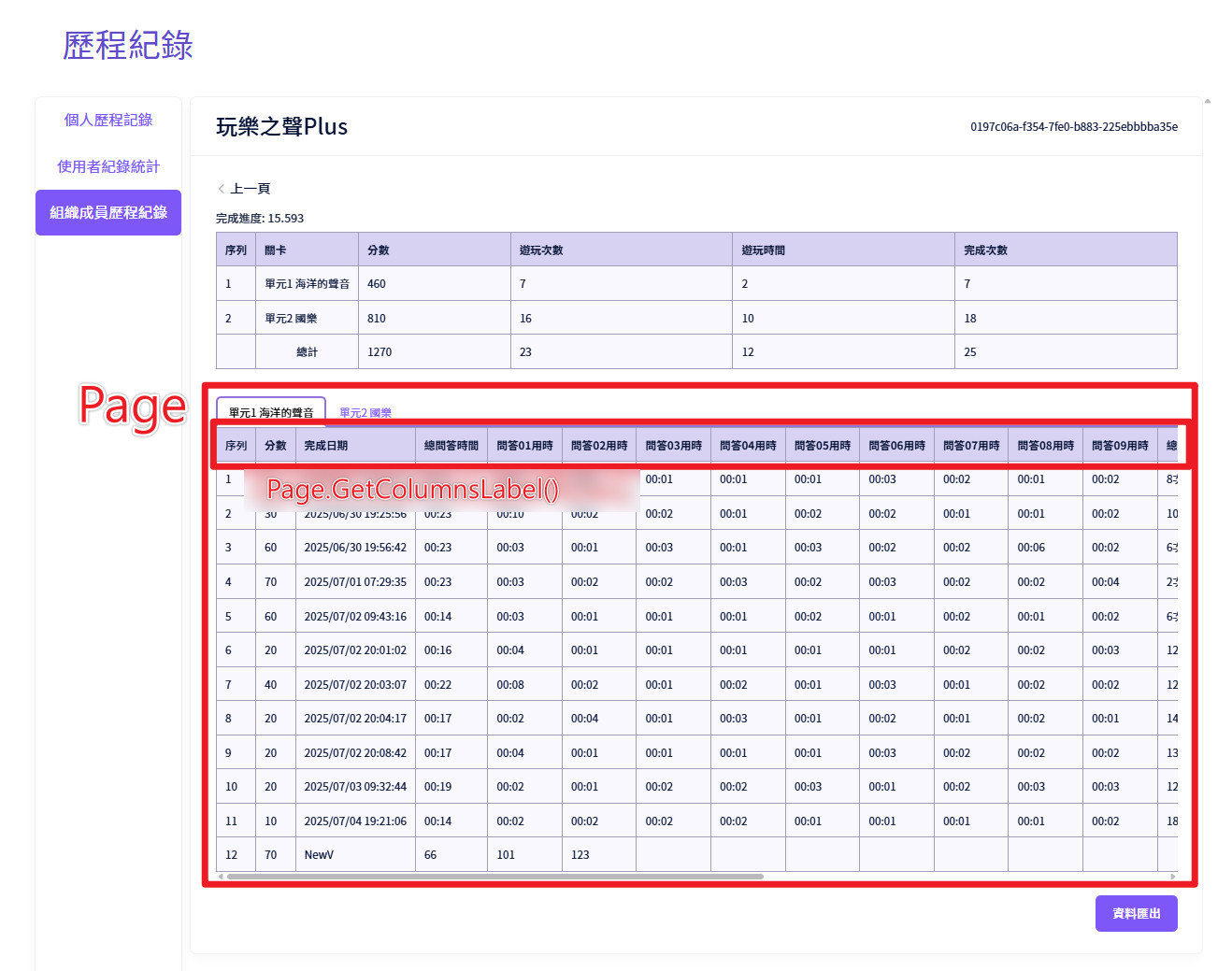
    [Page]
      |
      ├── [RootSheet]
      ├── Index                        : 分頁索引
      ├── Label                        : 標籤名稱
      ├── * AddRow                     : [網路服務請求] 加一資料列
      ├── * AddRowAndSetCells          : [網路服務請求] 承上、加一資料列並設定內容
      ├── * ClearReadableData          : [網路服務請求] 清除所有可讀寫資料
      ├── [Columns]                    : 資料欄位
      └── [Rows]                       : 資料列

        [Column]
          |
          ├── [RootPage]
          ├── Index                    : 欄索引
          ├── Label                    : 欄位標籤名稱
          ├── IsReadOnly               : 是否為唯讀欄位
          ├── FieldType                : (*可修改項目) 欄位參考資料類型
          ├── CellsSummary             : 儲存格彙總資訊
          ├── * Edit                   : [網路服務請求] 修改欄位屬性設定
          └── [Cells]                  : 取得該欄垂直的所有儲存格
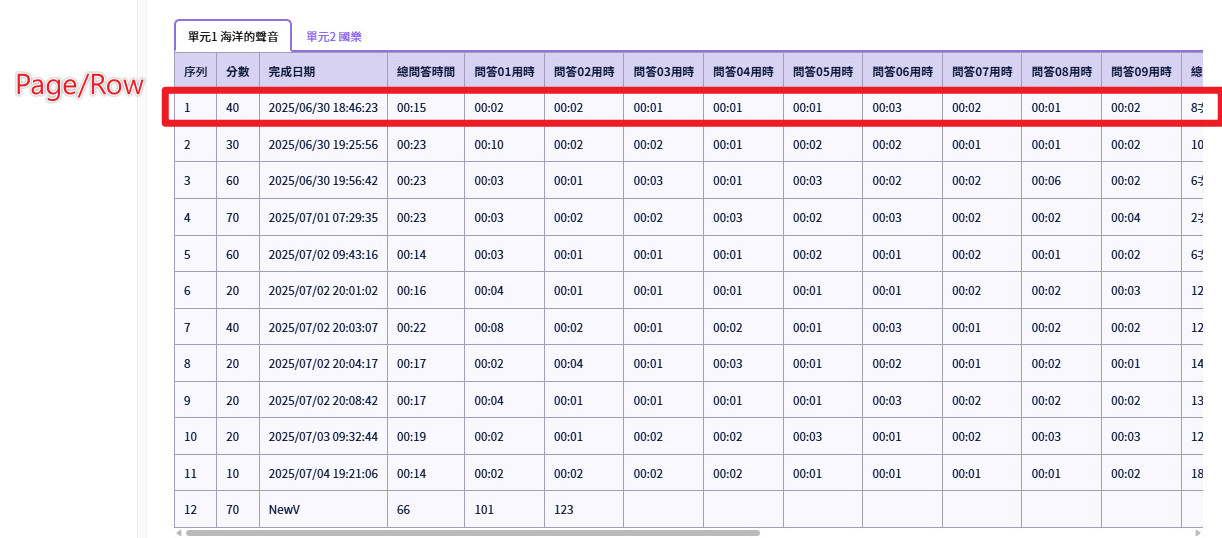
        [Row]
          |
          ├── [RootPage]
          ├── Index                    : 列索引
          ├── GetData                  : 取得該資料列的欄位名稱與儲存格文字對應字典
          ├── GetCellsText             : 取得該資料列水平的所有儲存格文字
          ├── GetCellsLabel            : 取得該資料列水平的所有儲存格欄位名稱
          ├── * SetCells               : [網路服務請求] 修改資料列內容
          └── [Cells]                  : 取得該資料列水平的所有儲存格

            [Cell]
              |
              ├── Row                  : 儲存格所在的資料列
              ├── Column               : 儲存格所在的欄位 (可能不存在)
              ├── IsReadOnly           : 是否為唯讀欄位
              └── Text                 : 儲存格的文字內容
¶ Sheet 使用者記錄
| 網頁後臺 | 應用程式 |
|---|---|
 |
 |
¶ 讀
// 如果未連線或未登入,則不執行後續操作
if (!LearningPortfolio.IsLoggedIn)
    return;

// 使用者登入時下載的紀錄 可以透過以下方法修改
LearningPortfolio.UserProjectRecordSheet Sheet = LearningPortfolio.LoggedUserProjectRecordSheet;

// 這個資料表是否有數值正在網路需求寫入資料庫中
bool isUploading = Sheet.IsAnyNetSerivceRequesting;

// 取得所有頁面名稱
string[] pageLabels = Sheet.GetPagesLabel();
¶ CompletionProgress 完成進度紀錄
| 網頁後臺 | 應用程式 |
|---|---|
 |
 |
¶ 讀
// 完成進度百分比
float CompletionProgress = Sheet.CompletionProgress;

// 遍歷進度節點樹狀結構
printNode(Sheet.ProgressNode, 0);
static void printNode(LearningPortfolio.ProgressNode progressNode, int indent)
{
    string indentStr = string.Concat(Enumerable.Repeat("  ", indent));
    Debug.LogError($"{indentStr}{progressNode.Path}");

    if (progressNode.Children != null)
    {
        foreach (var child in progressNode.Children)
            printNode(child, indent + 1);
    }
}

// 已完成的進度路徑與完成時間
for (int i = 0; i < Sheet.ProgressCompletions.Count; i++)
{
    string completionPath = Sheet.ProgressCompletions[i];
    DateTime completionDate = Sheet.ProgressCompletionsLocalDateTime[i];
    Debug.LogError($"完成進度 {completionPath} 完成於 {completionDate}");
}
¶ 寫
// 標記已知進度路徑為完成 這會使對應的進度節點更新 (如果節點存在的話)
if (Sheet.FindProgressNodeByPath("單元1/關卡1", out LearningPortfolio.ProgressNode node1))
{
    node1.SetComplete.Request
    (
        onSuccess: () => { Debug.Log("'單元1/關卡1' 成功標記進度完成"); },
        onFailure: (msg) => { Debug.LogError("標記進度完成失敗 因為:" + msg); },
        onException: (ex) => { Debug.LogException(ex); }
    );
}
// 取消已知進度路徑完成標記 這會使對應的進度節點更新 (如果節點存在的話)
if (Sheet.FindProgressNodeByPath("單元1/關卡1", out LearningPortfolio.ProgressNode node2))
{
    node2.SetUnmark.Request
    (
        onSuccess: () => { Debug.Log("'單元1/關卡1' 成功取消完成標記"); },
        onFailure: (msg) => { Debug.LogError("取消完成標記進度失敗 因為:" + msg); },
        onException: (ex) => { Debug.LogException(ex); }
    );
}

// 標記某個進度路徑為完成 (如果節點不存在則不會更新節點資訊)
Sheet.SetCompleteIncludeNonNode.Request("Extra/額外關卡",
    onSuccess: () => { Debug.Log("'Extra/額外關卡' 成功標記進度完成"); },
    onFailure: (msg) => { Debug.LogError("標記進度完成失敗 因為:" + msg); },
    onException: (ex) => { Debug.LogException(ex); }
);
// 取消某個進度路徑完成標記 (如果節點不存在則不會更新節點資訊)
Sheet.SetUnmarkIncludeNonNode.Request("Extra/額外關卡",
    onSuccess: () => { Debug.Log("'Extra/額外關卡' 成功取消完成標記"); },
    onFailure: (msg) => { Debug.LogError("取消完成標記進度失敗 因為:" + msg); },
    onException: (ex) => { Debug.LogException(ex); }
);
¶ 非同步
// 標記進度路徑為完成 (如果節點不存在則不會更新節點資訊) 非同步寫法
if (Sheet.FindProgressNodeByPath("單元1/關卡1", out LearningPortfolio.ProgressNode node3))
{
    UniTask.Void(async () =>
    {
        NetServiceAsyncRespond result = await node3.SetComplete.RequestAsync();
        if (result.IsSuccess)
            Debug.Log("'單元1/關卡1' 成功標記進度完成");
        else if (result.IsFailed)
            Debug.LogError("標記進度完成失敗 因為:" + result.ErrorMessage);
        else if (result.IsException)
        {
            // 標記進度完成發生例外
            Debug.LogException(result.Exception);
        }
    });
}
¶ Page 詳細資料頁面
| 網頁後臺 | 應用程式 |
|---|---|
 |
 |
¶ 讀
為了簡化說明,這邊使用一個極簡的頁面來說明
- 正常有儲存資料的頁面
序列 總分 名稱 體重 1 90 Lucy 40 2 80 Will 50 170
// 總覽頁 = 第1頁
LearningPortfolio.Page targetPage = Sheet.Pages[0];

// 所有欄標籤
// 範例: string[] = {"總分","名稱","體重"}
string[] columnLabels = targetPage.GetColumnsLabel();
¶ 寫
- 清空後
序列 總分 名稱 體重
// 清除該頁所有寫入資料
Sheet.Pages[1].ClearReadableData.Request
(
    onSuccess: () => { Debug.Log("成功清除可讀取的資料"); },
    onFailure: (msg) => { Debug.LogError("清除可讀取的資料失敗 因為:" + msg); },
    onException: (ex) => { Debug.LogException(ex); }
);
¶ 非同步
// 清除該頁所有寫入資料
NetServiceAsyncRespond result = await targetPage.ClearReadableData.RequestAsync();
if (result.IsSuccess)
    Debug.Log("成功清除可讀取的資料");
else if (result.IsFailed)
    Debug.LogError("清除可讀取的資料失敗 因為:" + result.ErrorMessage);
else if (result.IsException)
    Debug.LogException(result.Exception); // 清除可讀取的資料發生例外
¶ Row 資料列
| 網頁後臺 | 應用程式 |
|---|---|
 |
 |
¶ 讀
為了簡化說明,這邊使用一個極簡的頁面來說明
- 正常有儲存資料的頁面
序列 總分 名稱 體重 1 90 Lucy 40 2 80 Will 50 170
LearningPortfolio.Page targetPage = Sheet.Pages[1];

// 當前列資料數量有多少 以上表來說 rowCount = 2
int rowCount = targetPage.Rows.Count;

// 範例: Row[1] = {"90","Lucy","40"}
// 範例: Row[2] = {"80","Will","50"}
string[] rowLabels = targetPage.Rows[1].GetCellsText();
¶ 寫
- 新增第三列資料範例
序列 總分 名稱 體重 1 90 Lucy 40 2 80 Will 50 (新增) 3 70 NewV 66 240
// 如果你想新增一列資料到該頁
LearningPortfolio.Page targetPage = Sheet.Pages[1];

targetPage.AddRowAndSetCells.Request
(
    value: new API.SetRowRequest()
    {
        Cells = new string[] { "70", "NewV", "66", "101", "123" }
    },
    onSuccess: (response) => { Debug.Log($"成功新增寫入一筆列資料,索引位置為 {response.RowIndex}"); },
    onFailure: (msg) => { Debug.LogError("新增新列失敗 因為:" + msg); },
    onException: (ex) => { Debug.LogException(ex); }
);
¶ 非同步
// 如果你想新增一列資料到該頁
NetServiceAsyncRespond<API.AddRowResponse> result =
    await targetPage.AddRowAndSetCells.RequestAsync(new API.SetRowRequest()
{
    Cells = new string[] { "70", "NewV", "66", "101", "123" }
});

if (result.IsSuccess)
    Debug.Log($"成功新增寫入一筆列資料,索引位置為 {result.Data.RowIndex}");
else if (result.IsFailed)
    Debug.LogError("新增新列失敗 因為:" + result.ErrorMessage);
else if (result.IsException)
    Debug.LogException(result.Exception); // 新增新列發生例外
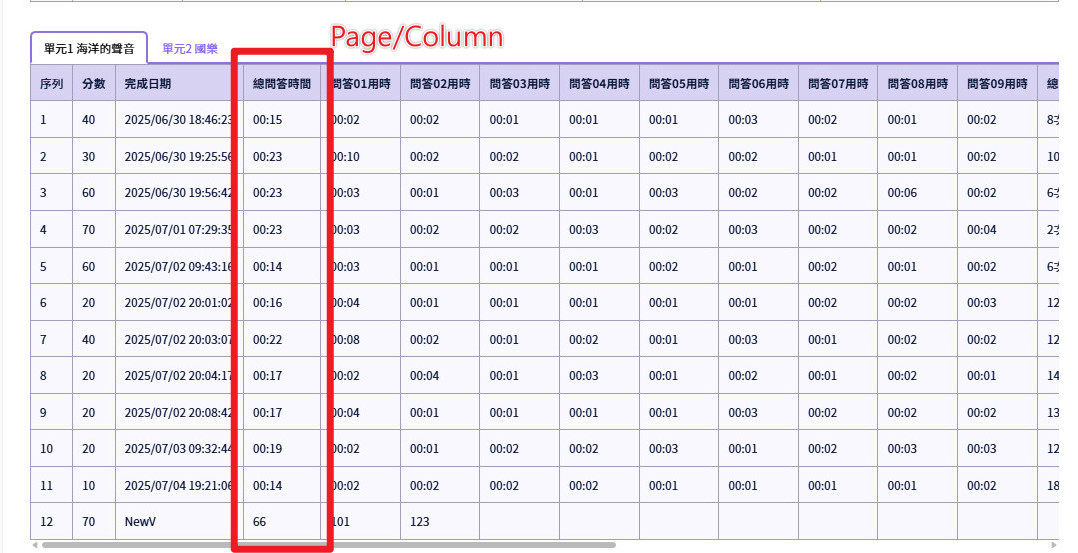
¶ Column 資料欄
資料欄目前較無作用,可忽略
| 網頁後臺 | 應用程式 |
|---|---|
 |
|
¶ 讀
為了簡化說明,這邊使用一個極簡的頁面來說明
- 正常有儲存資料的頁面
序列 總分 名稱 體重 1 90 Lucy 40 2 80 Will 50 170
LearningPortfolio.Page targetPage = Sheet.Pages[1];

// 範例: LearningPortfolio.Column[0] = { Label = "總分", IsReadOnly = false, FieldType = "Number" }
// Label = "總分"        : 這個欄位的名稱
// IsReadOnly = false   : 這個欄位是可寫入的
// FieldType = "Number" : 這個欄位的資料型態
LearningPortfolio.Column targetColumn = targetPage.Columns[0];

// 這邊也可以透過欄取得欄位元素
// LearningPortfolio.Column[0].GetCellsText() = {"總分","90","80"}
// LearningPortfolio.Column[1].GetCellsText() = {"名稱","Lucy","Will"}
// LearningPortfolio.Column[2].GetCellsText() = {"體重","40","50"}
string[] targetCells = targetColumn.GetCellsText();